Windows 10 / 11
Clone files, folders and templates in bulk — with custom names applied to every copy.
Try free, upgrade to Pro for unlimited cloning.
Free Download
Free
No sign-up
BatchCloner Free
Clone any file or folder structure using a names list — works with documents, images, video, audio, code files and more. Every file type supported.
ⓘ Free version limit: up to 25 clones per session. Need more? Upgrade to Pro below.
★ Pro License
$25
one-time · USD
BatchCloner Pro
Unlimited cloning with no restrictions. Clone entire folder structures, preserving every file and subfolder with your custom naming applied to each copy. One-time purchase.
Pro-only features
Unlimited clones
Clone complete folder structures
All file types supported
Custom naming conventions
🛡 30-day money-back guarantee · License key delivered to your email
Download & launch
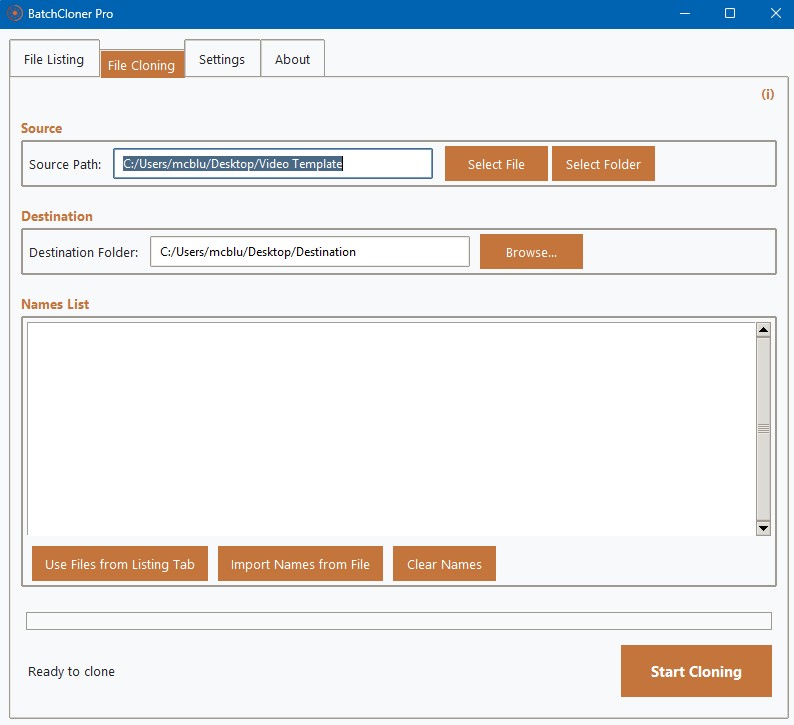
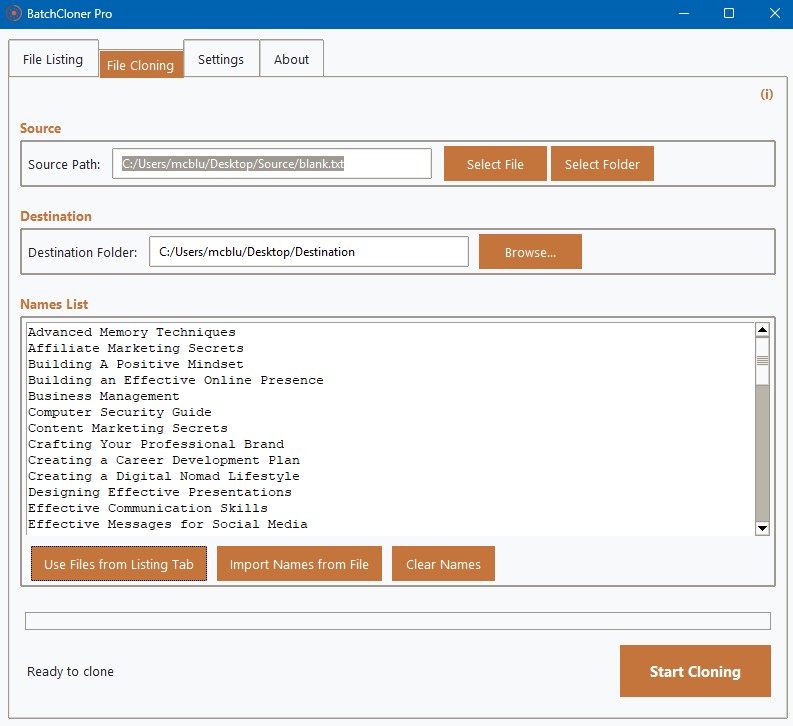
Download the free version above and open it on Windows 10 or 11. The app has two tabs — File Cloning and File Listing.
Choose your template
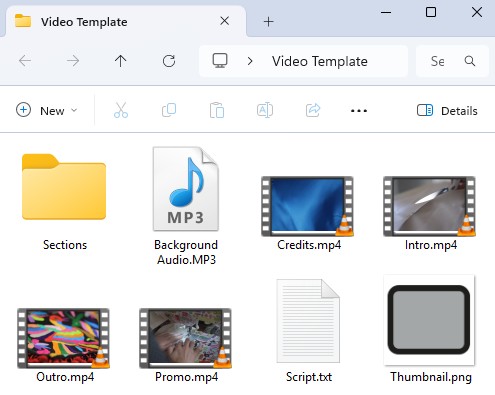
Pick any file or folder to use as your template. BatchCloner will create a named copy of it for every entry in your names list — preserving the complete internal structure each time.
Build your names list
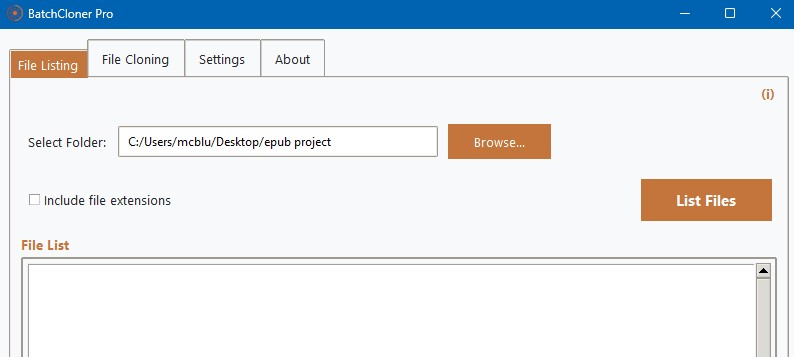
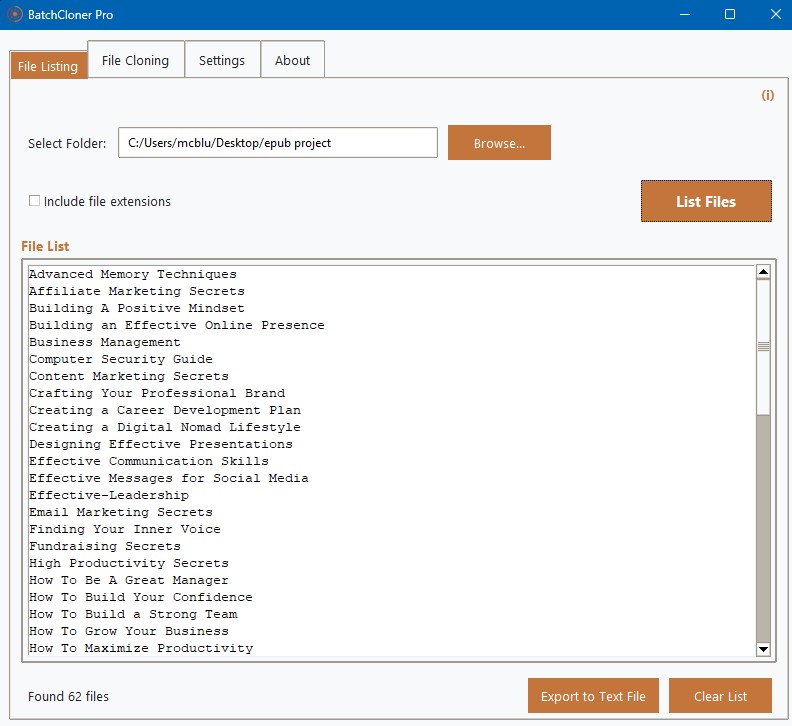
You have two options — import an existing .txt file of names, or use the built-in File Listing tab to generate a list from the filenames in any folder. Click List Files, review the list, then export it as a .txt backup if needed.
Import the names into File Cloning
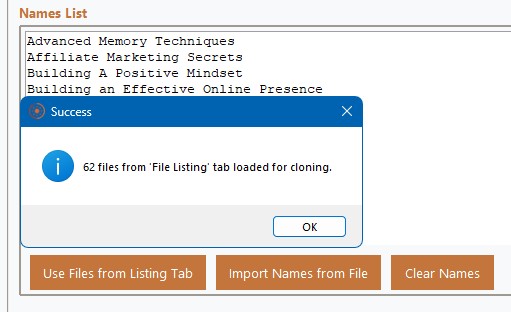
Switch back to the File Cloning tab and click Use File from Listing tab to pull in your names. You’ll see them loaded and ready.
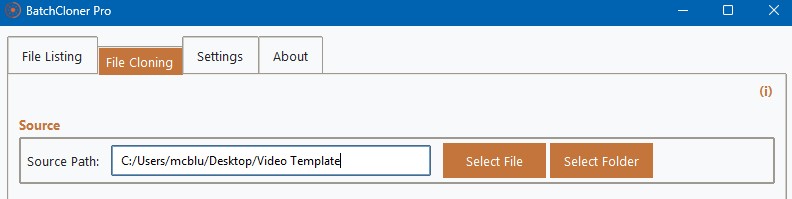
Select template & set destination
Choose your source template file or folder, then set the destination folder where all the clones will be saved.
Start cloning
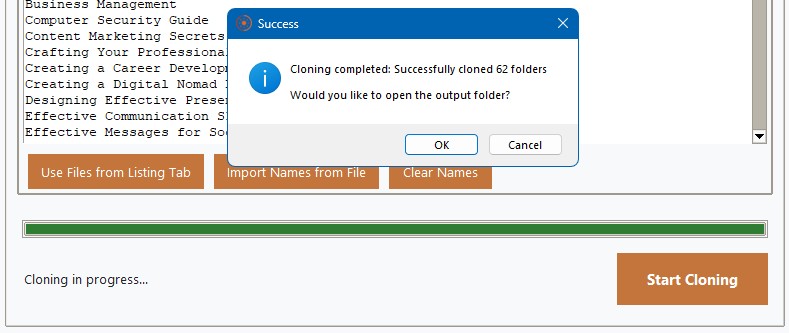
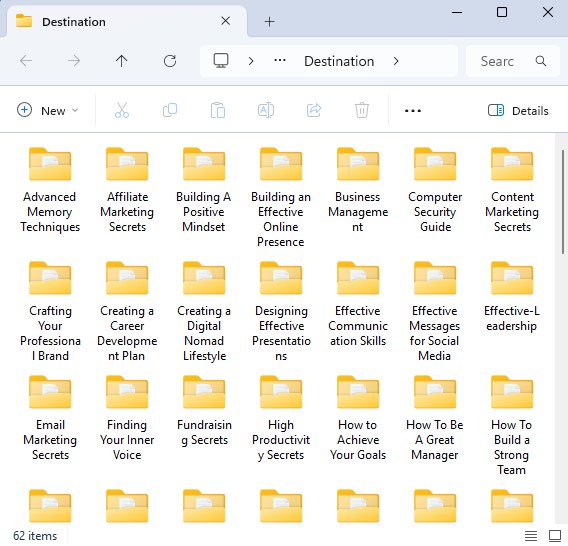
Click Start Cloning. BatchCloner creates a fully named copy of your template for every entry in your list. Open the destination folder to see your cloned templates ready to use.