Windows 10 / 11
Bulk watermark your PDF documents in seconds.
Add copyright logos or text to entire collections of PDFs in one session. Try free, upgrade for unlimited pages.
Free Download
Free
No sign-up
Standard Edition
Add text or image watermarks to as many PDFs as you like — watermarks the first 5 pages of each document.
ⓘ Free version limit: watermarks the first 5 pages of each document. Need more? Upgrade to Pro below.
★ Pro License
$25
one-time · USD
Pro Edition
Everything in the free version, plus unlimited watermarking across all pages of every document.
Pro-only features
Watermark entire collections
🛡 30-day money-back guarantee · License key delivered to your email
Download & launch
Download the free version above and open it on Windows 10 or 11. No installer wizard or account needed.
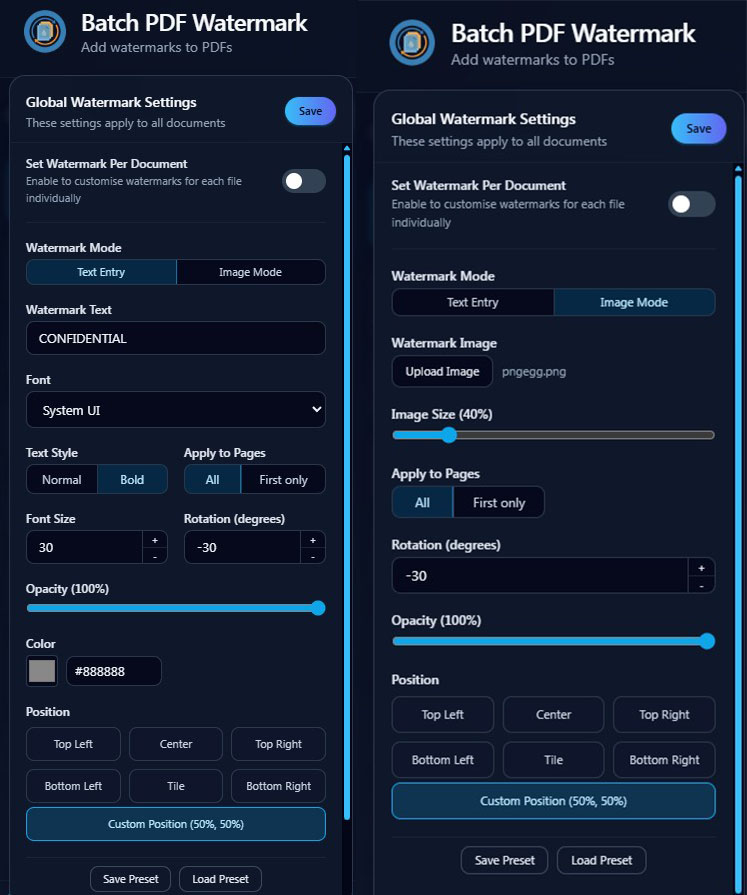
Configure your watermark
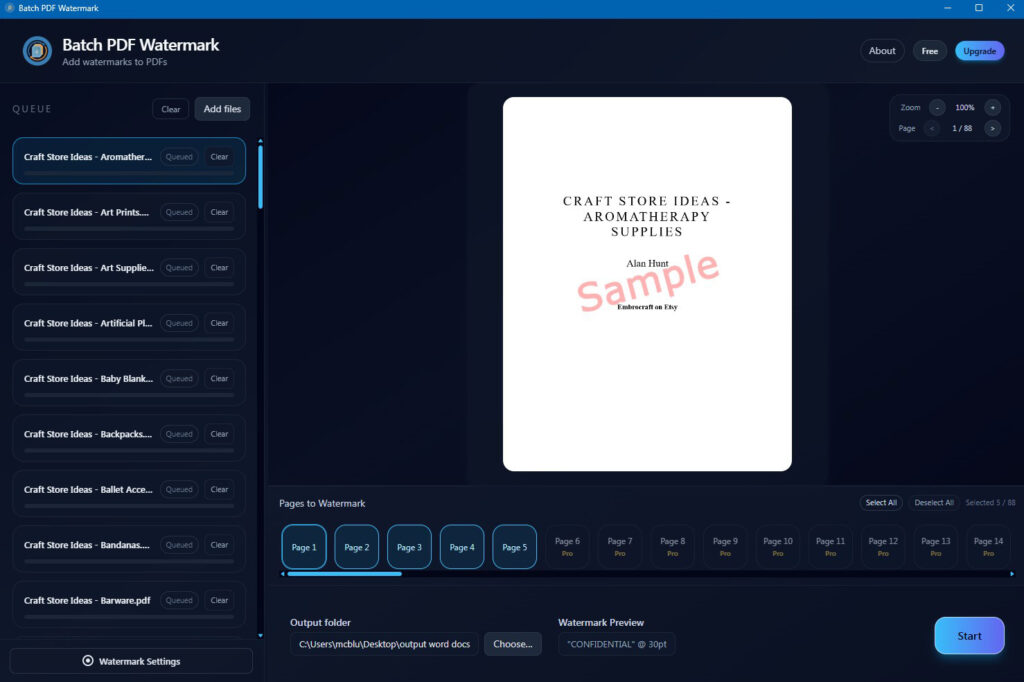
Use the Text Entry tab to add a text watermark, or switch to Image Mode to use a logo. Set the position, opacity, and size to suit your documents.
Select pages & preview
All pages are selected by default. Use the page tabs to deselect any you want to skip. Use the zoom control and page arrows to preview exactly how the watermark will look before processing.
Set output folder & add files
Choose where your watermarked PDFs will be saved, then add the documents you want to process and click Start.
Done — view your watermarked PDFs
Once complete, open the output folder to find your watermarked documents ready to use.
Upgrade to Pro (optional)
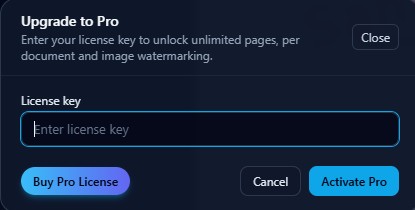
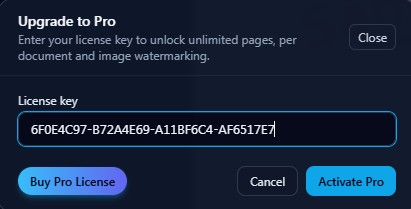
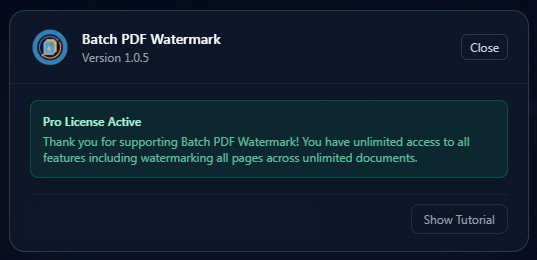
Click Upgrade in the top-right of the app, purchase a license from Gumroad, then paste your key to unlock unlimited page watermarking. Once active you’ll see Pro License Active in the About screen.